

Selection and view
The description below assumes that all elements in the model are visible and that no elements are selected when report management is started.
You can also start report management when part of the structure is invisible and/or when you have selected elements, but that would take us too far afield in this explanation.
- Start by defining the orientation of the model on the images in the report.
- Either through the button
 .
.
- Click on the button .
You’ll re-enter the Diamonds work-environment. - Define the orientation of the model as you please using the sliders at the bottom and the right side.
- If you want to exclude certain elements from the report, set them invisible or select only the elements you want to include (see further).
- Don’t worry about the representation (
 ,
,  , …) at this point. We’ll come back to that in the tab pages Geometry, Loads and Results.
 - Once you’re done, click
 to return to the report manager.
 - In the middle of the report manager, there’s a thumbnail of the model so you can verify the selection and view.
- If you had hidden certain elements, choose the option “all visible elements“.
If you had selected certain elements, choose the option “selected elements“.
- Click on the button
- Either through the button
 .
.
- Click on the button .
You’ll see the list with the standard Diamonds views. - Choose one. The model will be centred and maximized in the window.
- This option does not allow you to exclude certain elements from the report. The report always applies to all elements.
- Click on the button
- Either through the button
- Grid
Use the button to easily turn the grid on and off and define it.
 - Scale of the images

- Either you choose one of standard width – height proportions using
 . The selected proportion is shown next to the icon. The width of an image always equals the page width.
 - Either you enter a custom scale ‘Manual’ and enter a number.
A proportion of 2.0 means that the width is twice as large as the height. - Either you click on and change the size of the dialogue that shows up. The chosen ratio is retained and entered in the scale when you click .
- Either you choose one of standard width – height proportions using
Scale 5:3
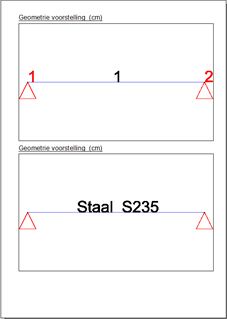
Scale 3:1

General information
- Title report
If you check this option, the name of the report will be used as title. - Table of content
If you check this option, Diamonds will generate a table of contents for the report(s).
If you want to combine multiple reports into one report, use the following settings:- 1st report

- 2nd report and the following reports that you want to include in the table of contents

- 1st report
The table of contents of each report for which you select the options ‘Table of contents’ and ‘Add to previous table of contents, with continued page numbers’ is added to the list of contents of the previous report. Page and paragraph numbers of the report continues the numbering of the previous one. An example of a compound table of contents:

- If you don’t check the option “add to previous table of contents”, you can indicate at which number the paragraph should begin:

- Project data
If you check this option, the content of the dialogue “Project reference” will be included in the report. - Insert software reference
If you check this option, the report will mention the Diamonds version in which the structure was designed, calculated and printed. - Insert calculation options
If you check this option, the report will mention which options you selected during the elastic analysis.
