
General
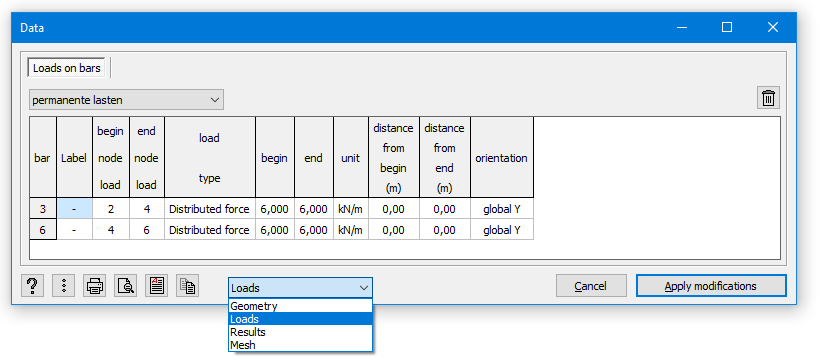
Depending on the selected configuration the content of the data table  changes:
- In the geometry
 or mesh
  configuration, the data table contains the geometry data
 - In the load configuration
 , the data table contains the loads data
 - In the results configuration
 , the data table contains the geometry and loads data
Using the pull down list at the bottom, you can easily switch between different configurations.
Using the pull down list at the top, you can display the loads data for a different load group.
If you’ve had nothing selected when you opened the data table , the table will contain the info of all elements. If you’ve had selected some elements when you opened the data tabel , the tabel will only contain the info about the selected elements.
The content of this table can be included in a report  (for geometry data click here, for loads data click here). Print the content of this dialog using
  . Optionally, ask a print preview first using
  . Click on
  to convert the data into an RTF-file.
Which info is visible?
To indicate which information should be included in the data table:
- Click
 .
.
The following dialogue appears:
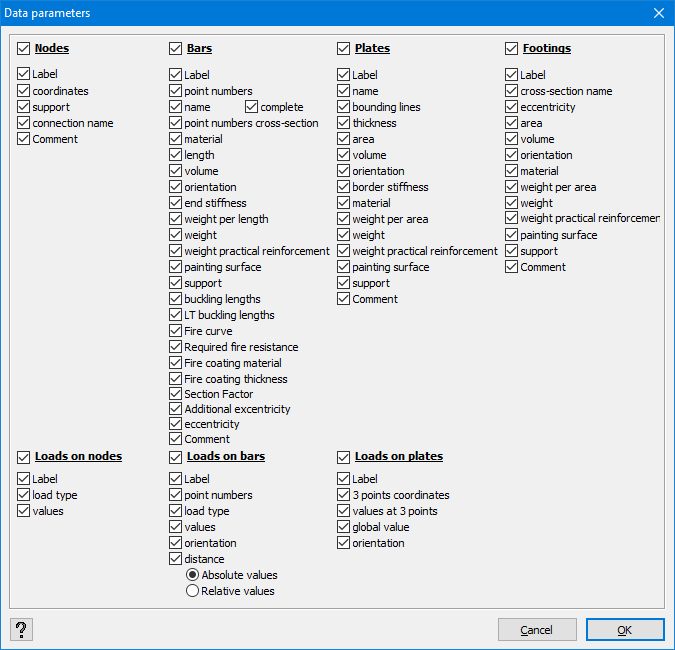
- Check the features you want to included. Unchecked those you don’t want to include.
Each feature is one column.
Modifying data using the table
Some data can also be modified in the data table, like
- the point coordinates
- the label and comment assigned to points, bars and surfaces
- the size of the loads on points, bars and surfaces.
Click on the cell you want to edit. Enter the new value and click  .
.
