
In a structural analysis model, elements (beams, columns, walls, slabs, … ) are schematically represented by the lines and surfacs to which constructive features are assigned. To assure the force transfer between these elements, they are interconnected.
In most cases, the force transfer is done through the common nodes between the elements. However, if these elements have a large eccentricity relative to each other, they don’t have common nodes. You’ll have to connect the elements using rigid links.

What is a rigid link?
A rigid link is:
- An infinitely stiff element that transfers all internal forces.
- It displaces (moves) as a rigid body. It cannot deform.
- A rigid link has no cross-section or material.
- Rigid links are represented by a dashed pink line.

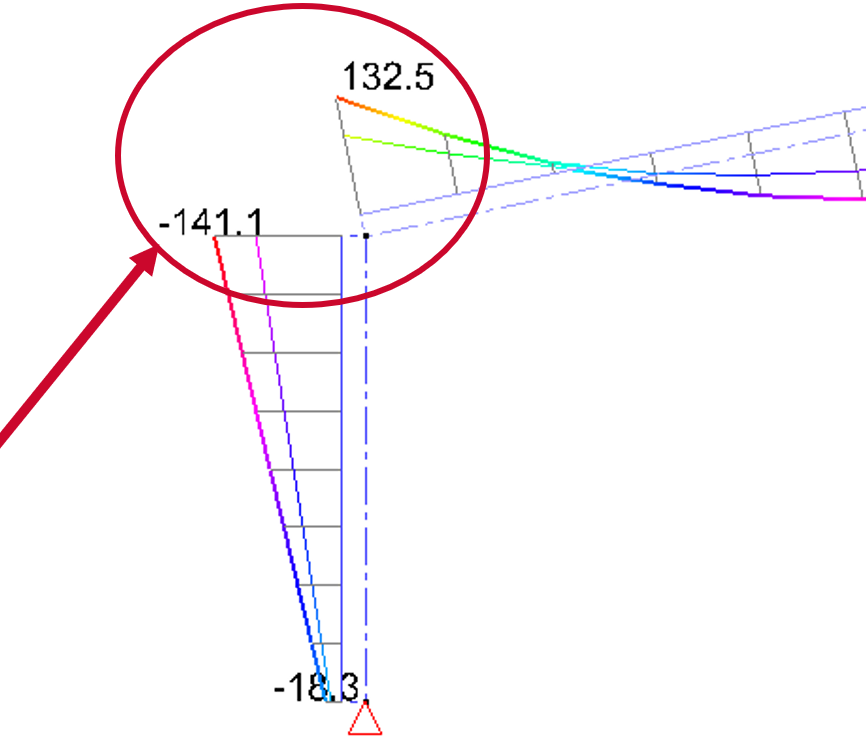
- It’s not possible to show the results in a rigid link, although they contain forces!
- Some cases of eccentricities can be modeled using this button
 . Here, Diamonds will automatically add the rigid links to the model.
How to make a rigid link?
- Select the bars you want to define as a rigid link.
- Click on
 . The rigid link is created.
 - Any necessary boundary conditions at the bar ends of the rigid link, can be defined using the button
 .
.
How to remove a rigid link?
- Select the relevant rigid links and hit DEL or
 .
.
You could also opt to transform the rigid link back to a regular bar:
- Assign a random cross-section & material to the rigid links. Choose for example a random steel cross-section from the library
 .
.
Alternative way to model rigid link-behaviour
The downside to rigid links is that it’s not possible to consult the internal forces in them. As a work-around, you could model the rigid link as a regular bar:
- Open the material library and create a new material with a very high Young’s modulus (E-modulus) and neglectable self-weight.
Make sure the Young’s modulus is a least 10x as high as the concrete/steel/timber used in the model. - Draw a line.
- Assign a large cross-section (you can exaggerate) and the new material to it.
- Any necessary boundary conditions at the bar ends of the rigid link, can be defined using the button .
- Assign the rigid links to a new Design type
 to make it easier to turn their results on/off.
 - Also define a minimum element size for bars to avoid unnecessary mesh nodes and long calculation times.
