1•2•Build always works according to the principle that you first make a selection and then apply a function to this selection.
Selecting with the mouse
Directly
- Click once on the element with the left mouse button.
- Selected elements are drawn bold.
- Click somewhere in the drawing area of 1•2•Build to cancel the selection.
Via selection box
- If you draw the selection box from the top left to the bottom right, 1•2•Build will select the elements which were completely within the selection box.
- If you draw the selection box from the bottom right to the left top, 1•2•Build will select the elements which were partially or completely within the selection box.
- Selected elements are drawn bold.
- Click somewhere in the drawing area of 1•2•Build to cancel the selection.
Selecting additional elements or removing elements from the selection
- To add more elements to the selection: hold the SHIFT-key down and click once on the additional elements.
- To remove an element from the selection: hold the SHIFT-key down and click once on the elements you want to remove from the selection.
Intelligent cursor
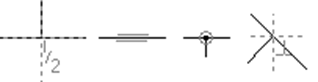
1•2•Build uses an intelligent cursor. This is a cursor that automatically detects when it is close to, for example, an existing point or an existing bar. The operation of the intelligent cursor can be set in the menu ‘Modify > General settings‘. In the dialogue box that appears, you can enable the intelligent cursor by ticking Snap to objects. The ‘snap distance‘ parameter specifies the maximum distance the cursor can be from an object before snapping to it. Distances that are too small make snapping more difficult; distances that are too large can be equally difficult to use in the case of compact structures.
The intelligent cursor snaps to points, bars, bar ends, bar centers and, when drawing the second point of a line, to the orthogonal projection on a bar.