
When using Diamonds, you probably feel the desire to edit a property for multiple elements at the same time.
And when those selected elements don’t have the same properties on opening a geometry dialog, a padlock  will be shown before the deviating propertie(s). This allows you to open certians padlocks, change the property and leave other properties as they are.
We illustrate the princimple here with boundary conditions, but also materials, eccentricities, … can be changed the same way.
- A model contains three bars with different boundary conditions.
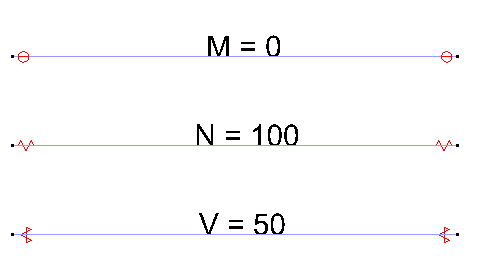
You want all bars to have the N = 100 kN/m boundary condition, without changing the other boundary conditions these bars already have. - Select all bars and click on
 .
.
The following dialog appears:
- Open the padlocks
 before N. Leave the other padlocks closed .
Change the transfer of axial forces to 100kN/m.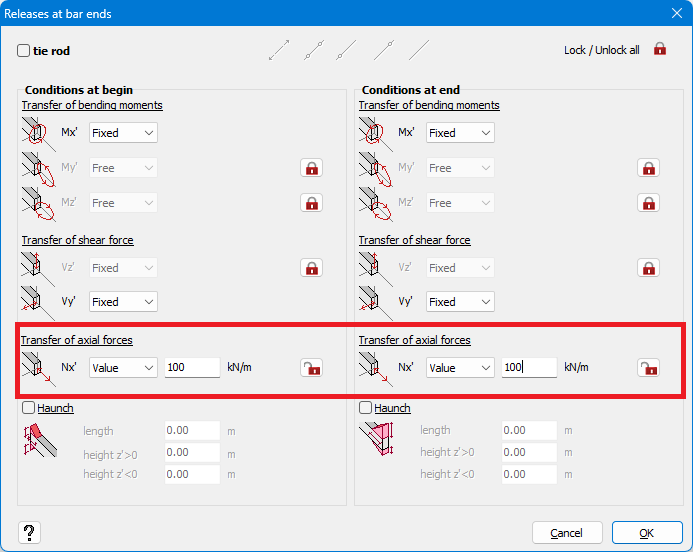
- Hit “OK”.
You now changed the boundary conditions for the transfer of axial force for all selected bars, whil not changing the boundary conditions for moment or shear.



