
Before installing, you need to decide how the license dongle(s) 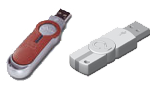 will be managed:
- Locally: the license dongle is plugged into the same computer as the one on which the BuildSoft software is used.
The installation instructions can be found here. - Over network: the license dongle is plugged into a license server and is thus not plugged into the same computer as the one on which the BuildSoft software is used.
The installation instructions can be found below.
On the license server machine
The license server machine can be any physical computer in the network. This does not necessarily has to be the file server.
- Download and install Codemeter Control Center (= program for the license management).
When installing Codemeter Control Center, make sure «Network Server» and «Remote access to WebAdmin» are checked.
You need the first one the share the license with the client computers within the network. You need the second one so that client computers can view the details of the license (expiration date, no. of available licenses, who is using the license).
- Plug the CodeMeter dongle directly in the server. Do not use an USB hub!
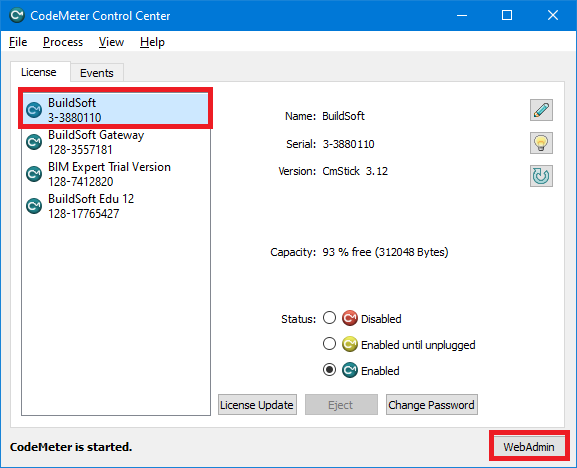
- Open the program CodeMeter Control Center (Start > All Programs > CodeMeter).
- Select the dongle from the list and click on the button Webadmin. An internet page will open.
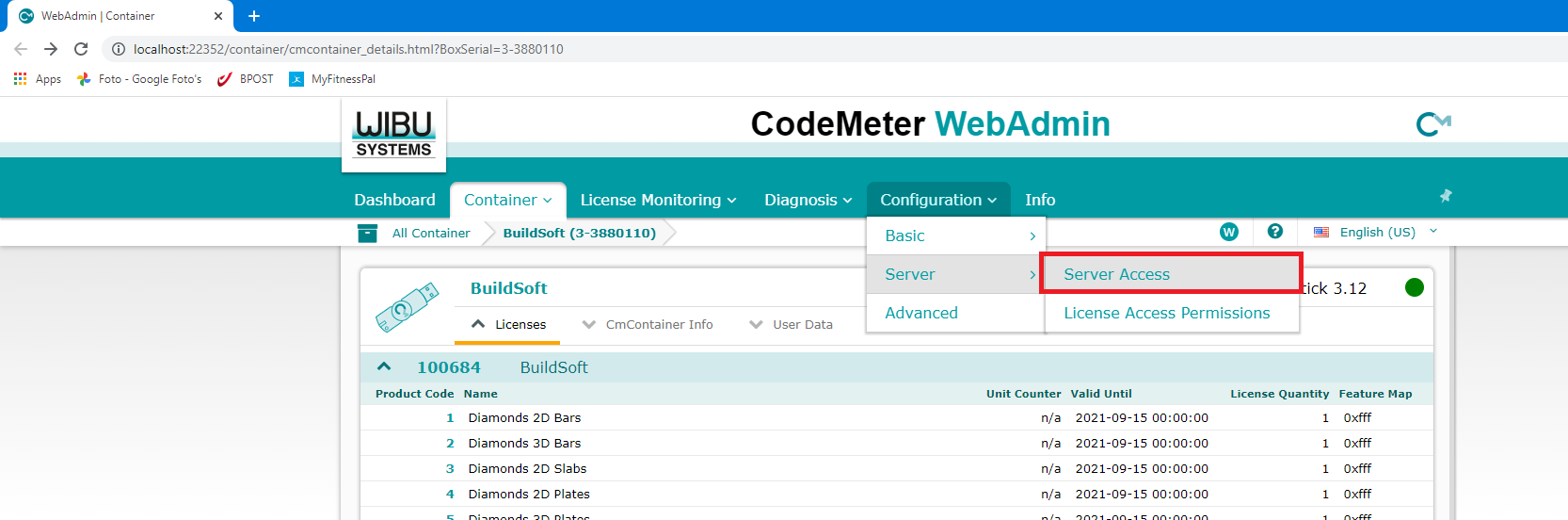
- On the internet page, go to Configuration > Server > Server Access.
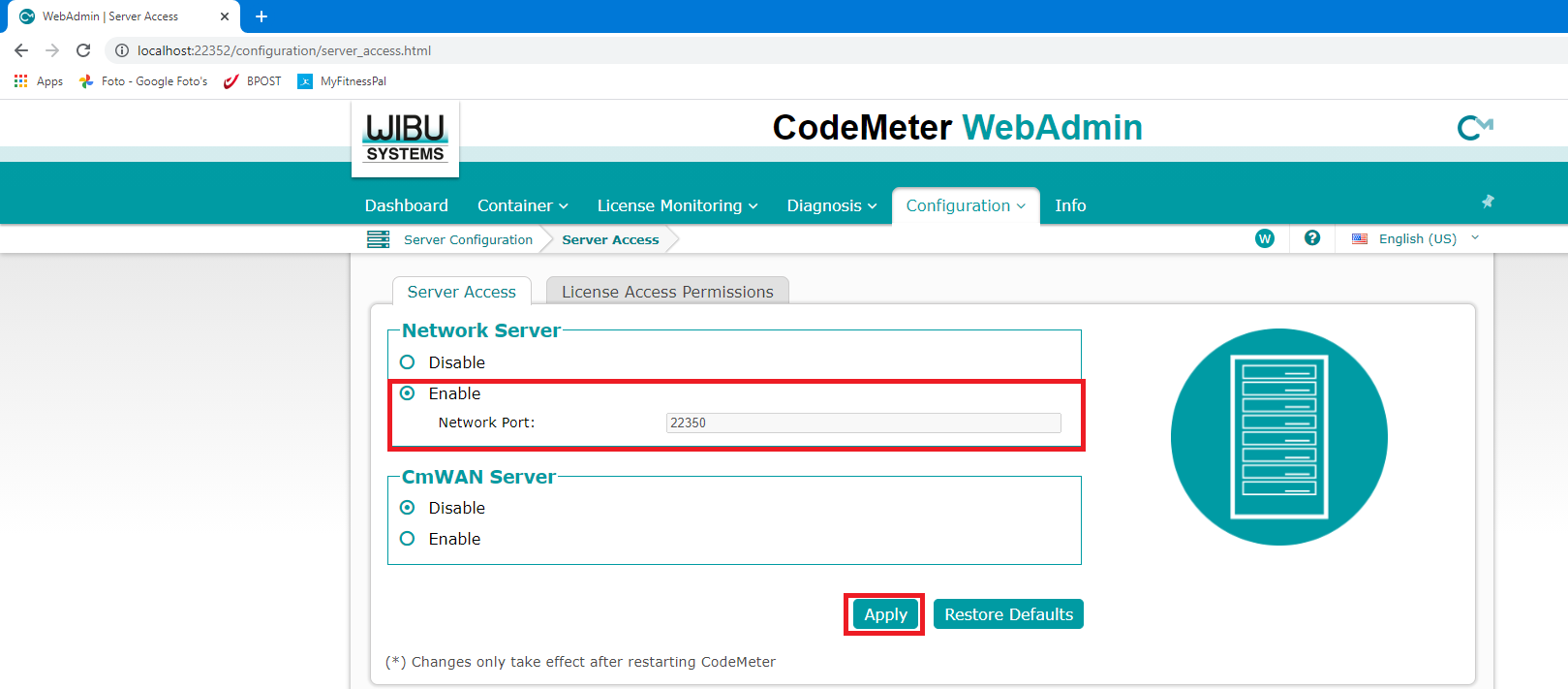
- With Run network server check the option Enable and hit Apply.
- Repeat steps 4 to 6 for any other CodeMeter dongle(s) you have.
On each client machine
You can install the buildsoft software on multiple computers (even if you only have one license). But the amount of computers on which you can run the software, depends on the number of licenses you have. For example: you have installed Diamonds on 3 computers, but only have 2 licenses. Then you can run Diamonds on 2 computers simultaneously.
- Install CodeMeter Control Center.
Note: The numbers of the license dongles plugged into the license server, will never be visible in the CodeMeter Control Center on the client’s side. Only local branched dongles are visible. - Install the BuildSoft software of your choice.
- If you want to connect to the license server machine using a VPN-connection, do step 1 from the additional settings below.
Additional settings
If the licenses are not automatically picked up by the client with the above method, you could try one of the following solutions.
- Point the client to the server (required when using a VPN connection)
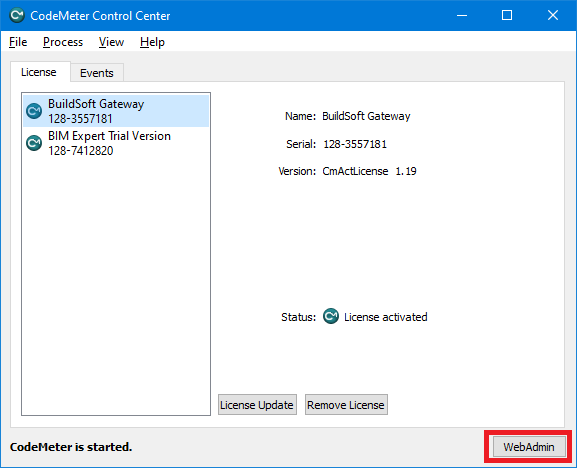
- Open the program Codemeter Control Center on the client machine (Start > All Programs > CodeMeter).
- Click on the button Webadmin. An internet page will open.
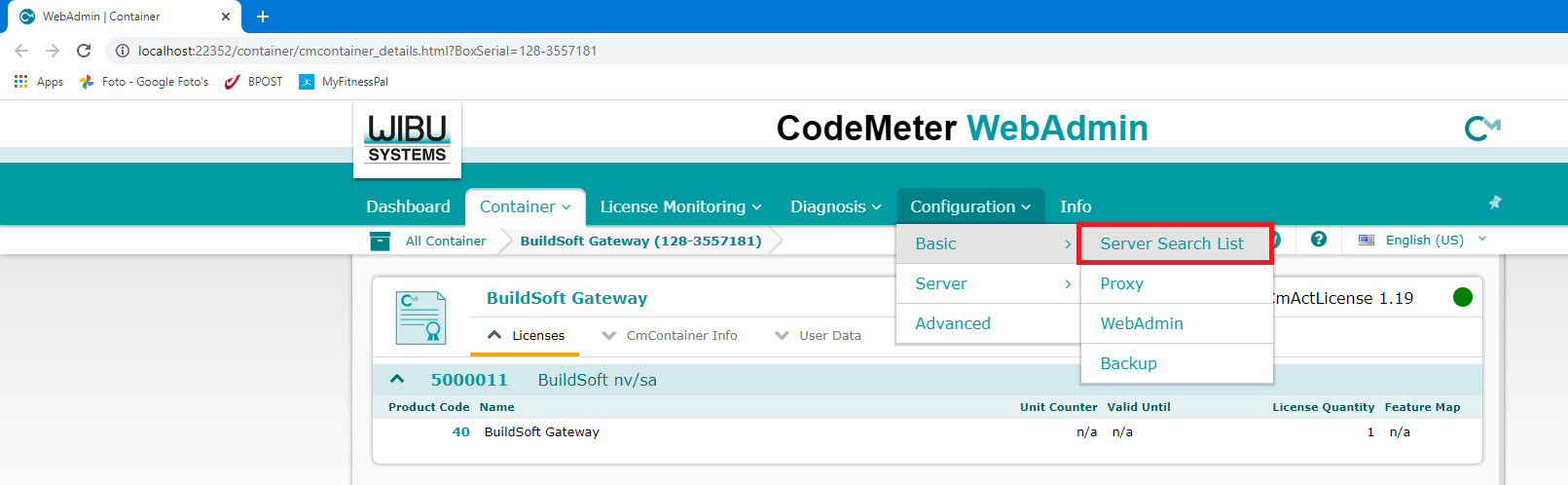
- On the internet page, go to Configuration > Basic > Server Search List.
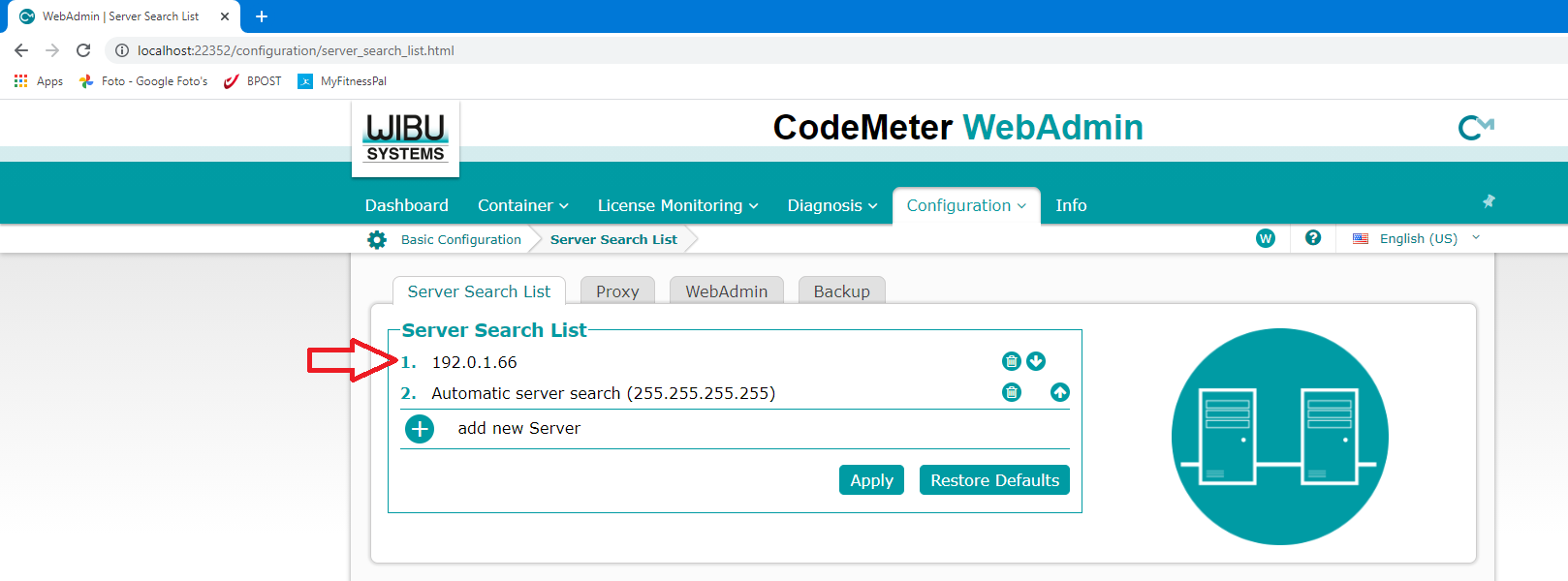
- Click on Add new server and enter the IP address of the server machine. For example: 192.0.1.66. Hit Apply.
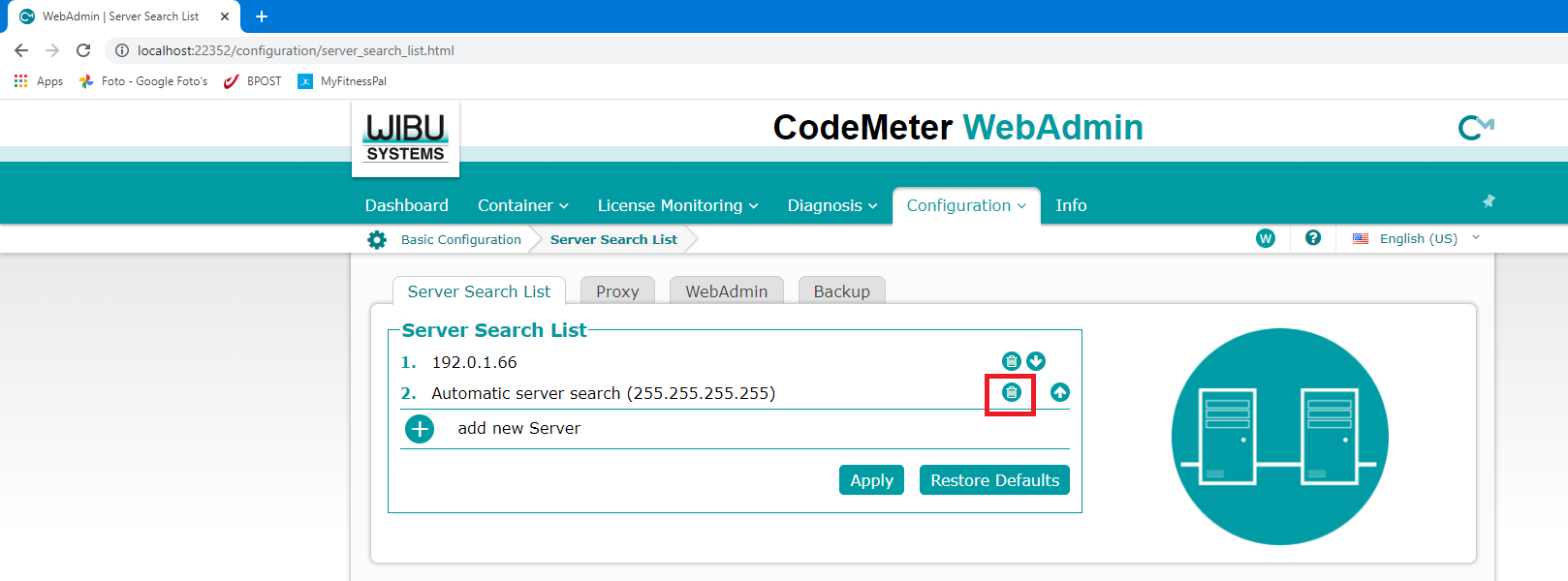
- The Server Search List will also contains the line Automatic server search (255.255.255.255). Remove that line from the list. This will make the start-up process of our software quicker.
- The client computer should be able to ping the server computer. That won’t be possible when the network profile is set to «public». So for the use of dongle in network, you should pick «private».

- Add CodeMeter Control Center as a safe program to the Windows Firewall.
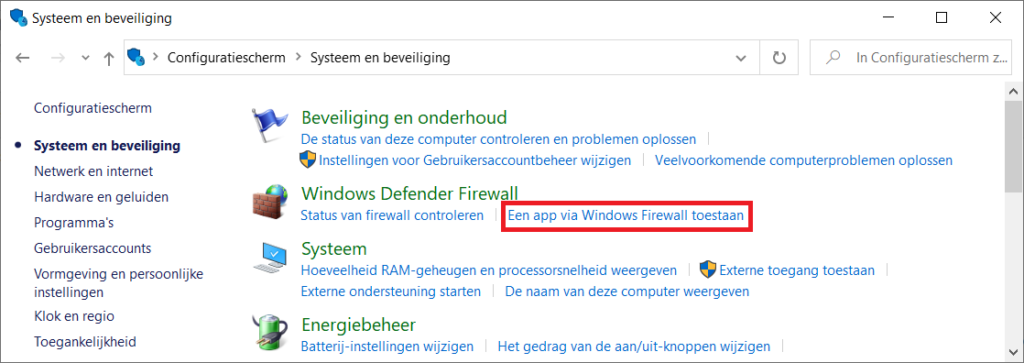
- Go to Start > Control Panel > System and Security. Select Allow a program through Windows Firewall.
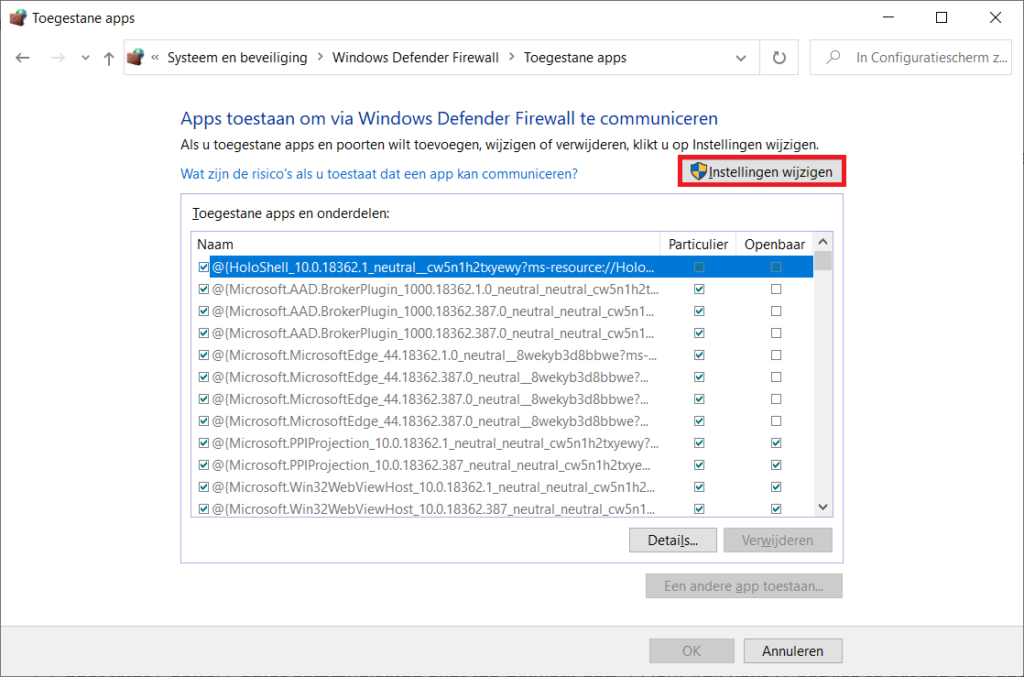
- Click on Change settings.
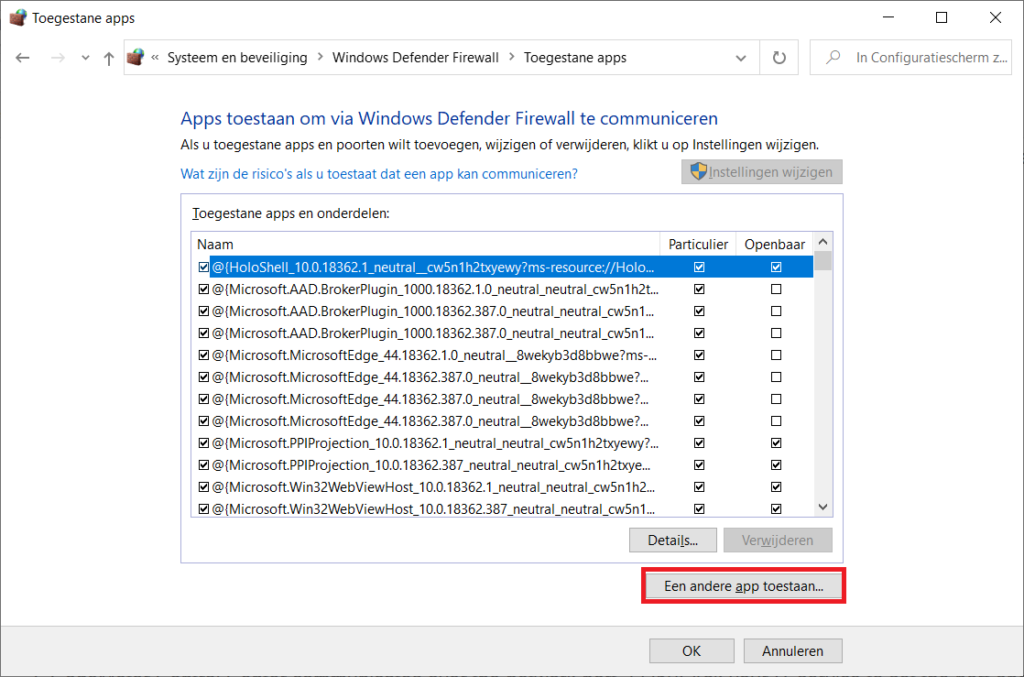
- Then click on Allow another app.
- Click on Browse…. Navigate to C:\Program Files\CodeMeter\Runtime\bin\ and select CmWebAdmin.exe. Click on Open.
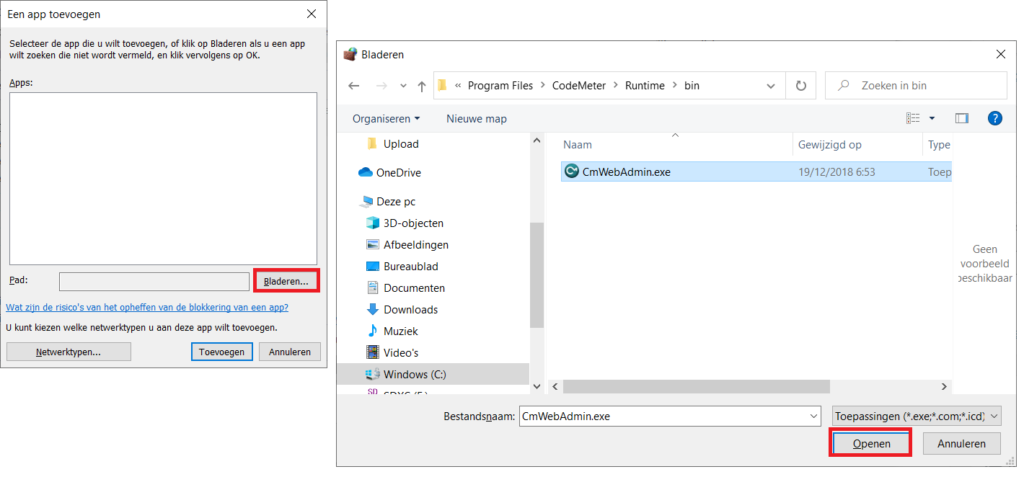
And then on Add.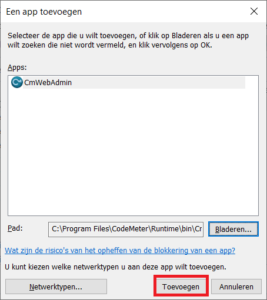
- Do the same for Codemeter.exe in the path C:\Program Files (x86)\CodeMeter\Runtime\bin\.
And CodemeterCC.exe in the path C:\Program Files (x86)\CodeMeter\Runtime\bin\.
- Go to Start > Control Panel > System and Security. Select Allow a program through Windows Firewall.
- On the server (via Configuration > Server > Server Access) , you can see which network port is used for the communication, usually it’s 22350.
Ask your IT-service to set the port open in the firewall if the above didn’t help.