
 align the selected elements to the left
 align the selected elements vertical
 align the selected elements to the left
 align the selected elements to the top
 align the selected elements horizontal

 align the selected elements to the bottom
 align the selected element according to an imposed vector
Follow the instructions in the status bar to use this function.
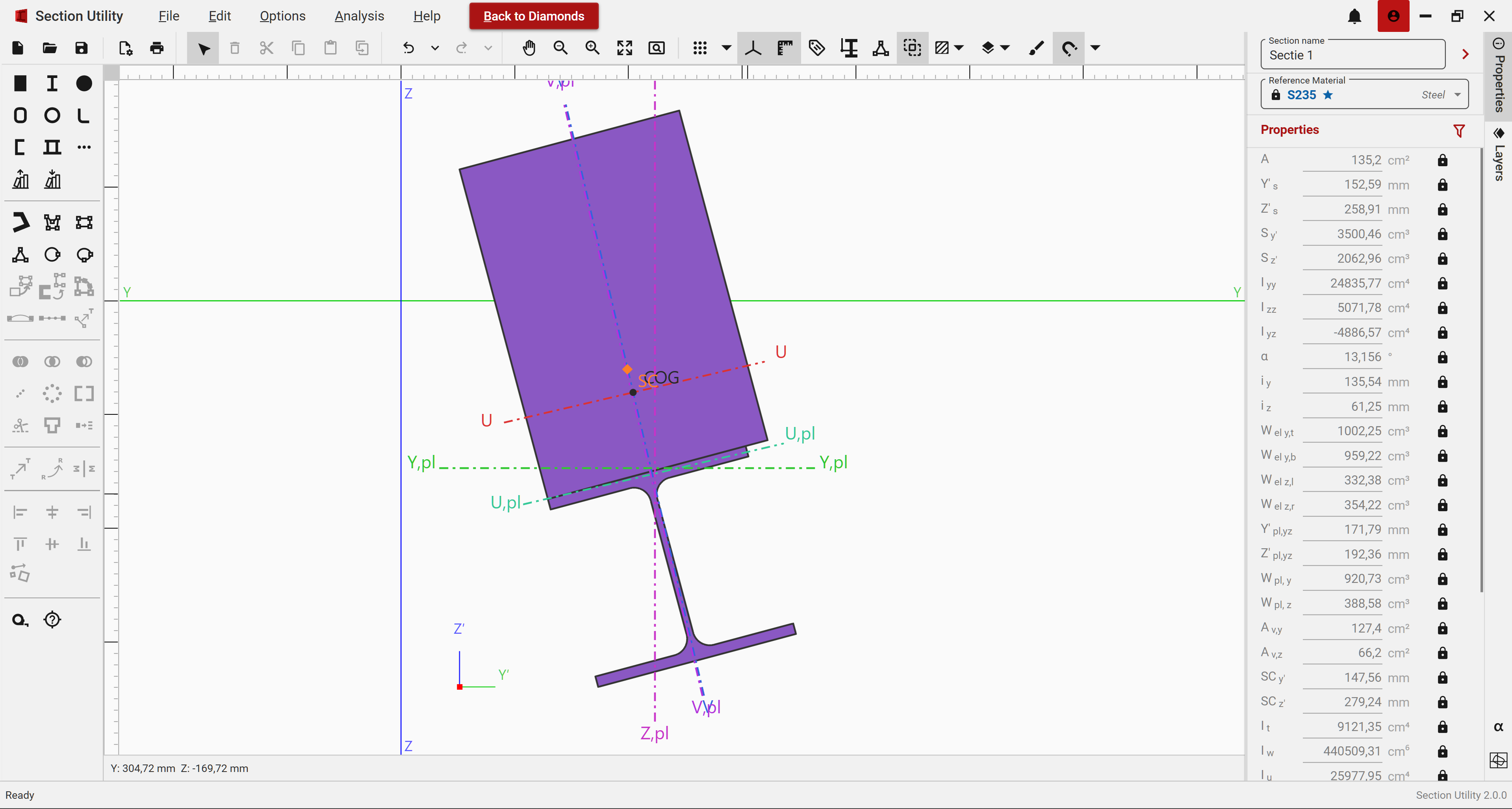
Example: let’s say we want to align the H-section with the bottom side of the rectangle.- Select the H-section and click on the button .
- The instructions ask you to select the first source point. Let’s select the top left corner of the H-section.
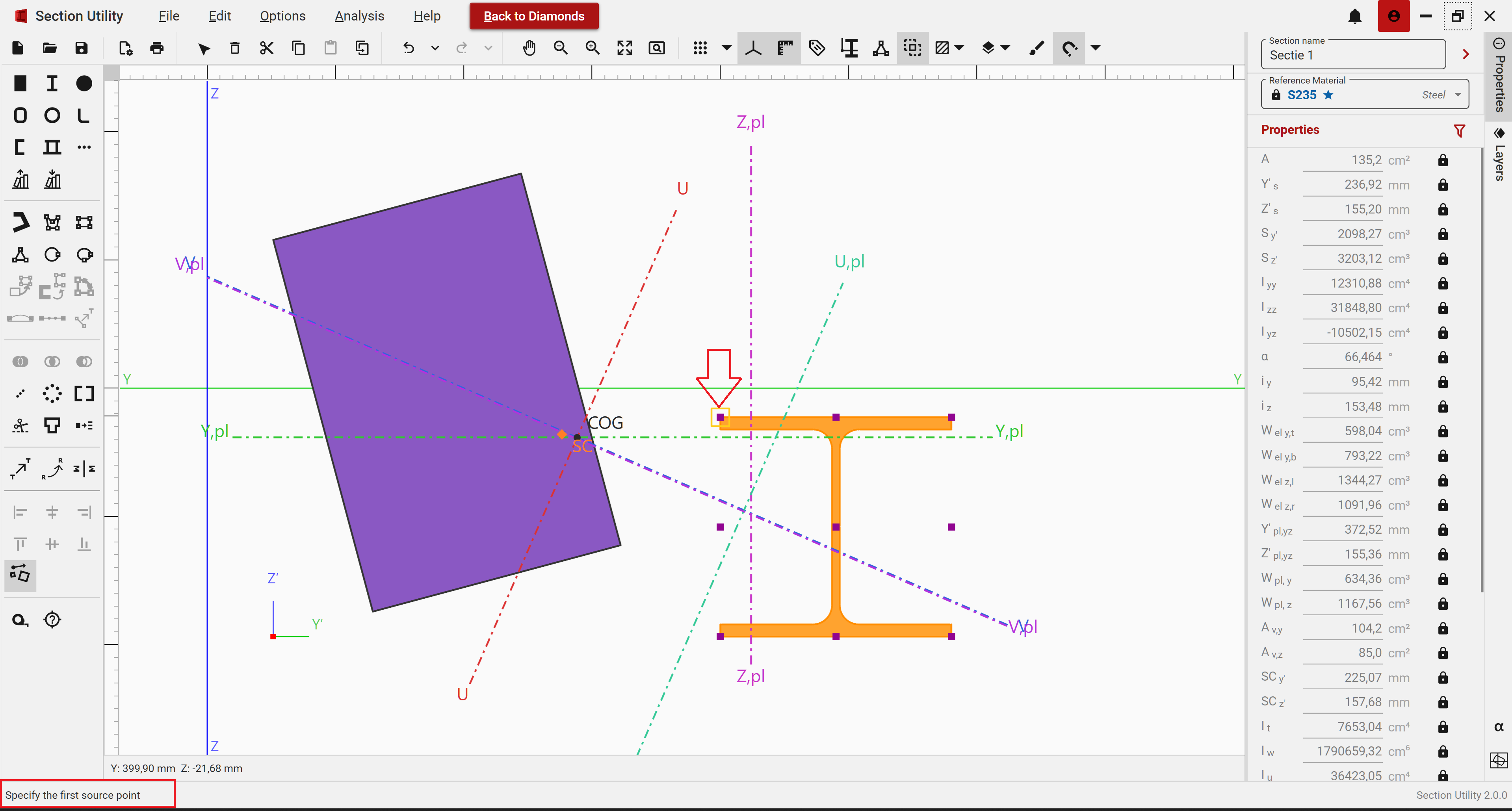
- The instructions ask you to select the first destination point. Let’s select the bottom left corner of the rectangle.
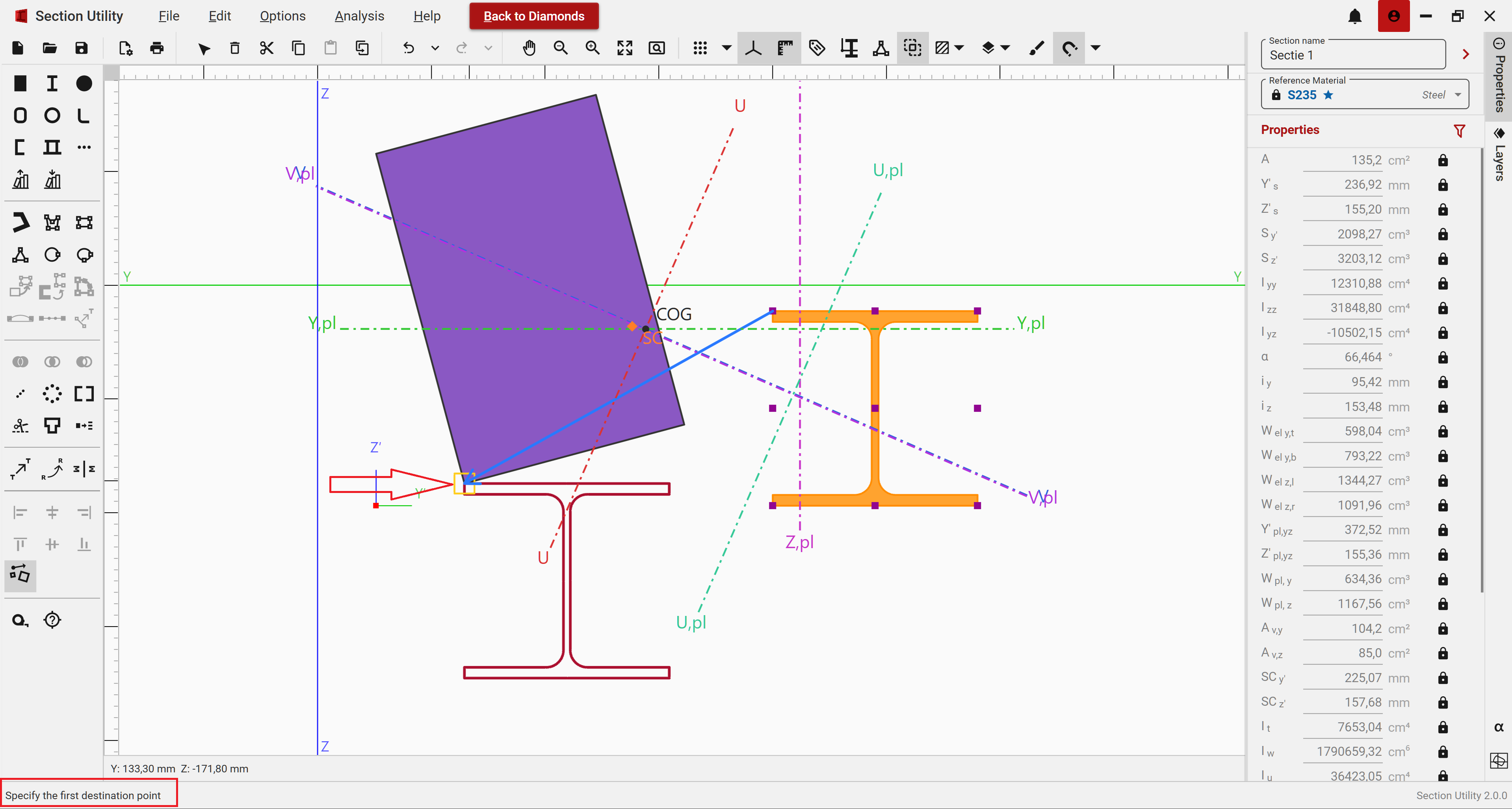
- The instructions ask you to select the second source point. Let’s select the top right corner of the H-section.
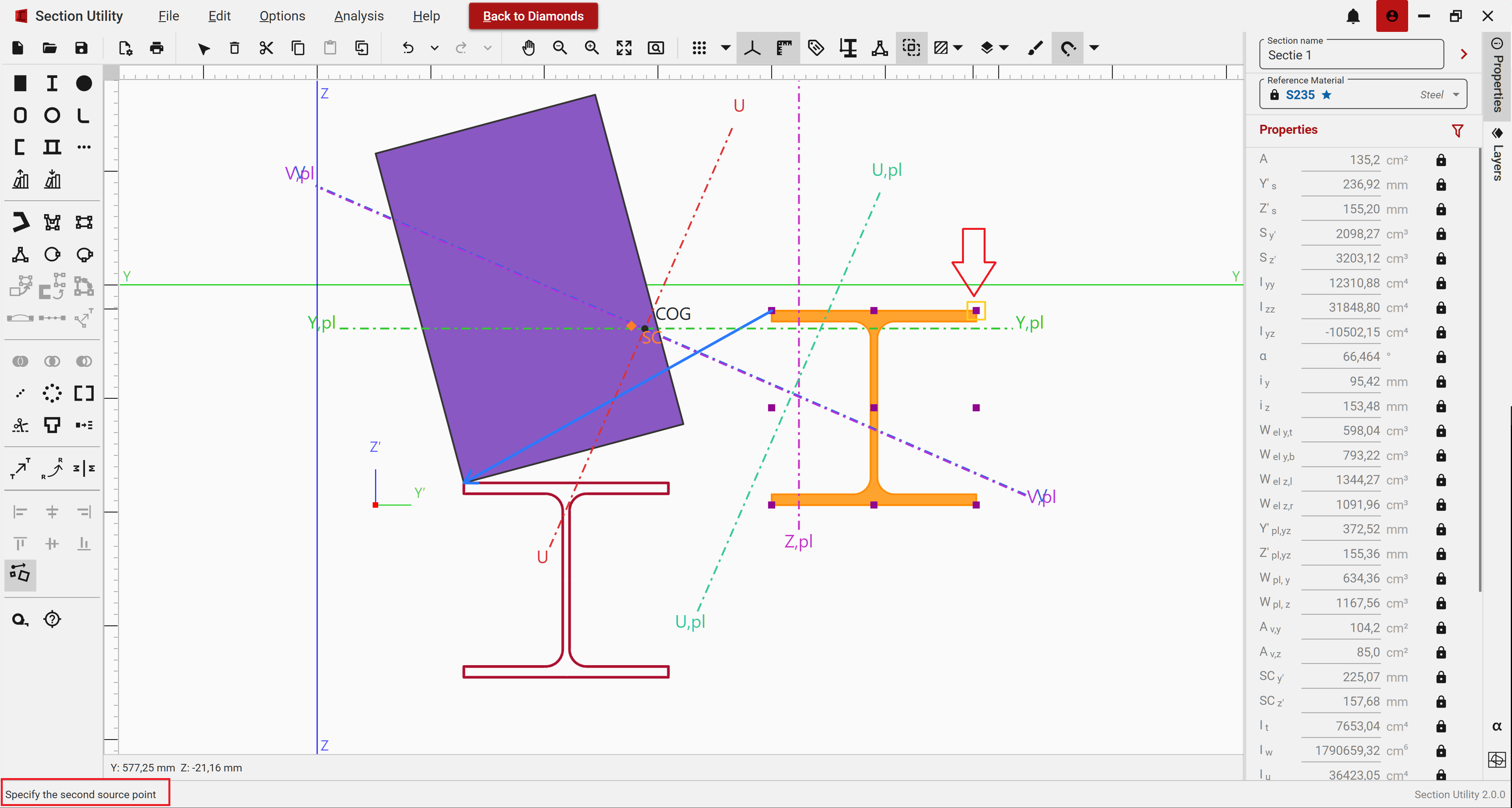
- The instructions ask you to select the second destination point. Let’s select the bottom right corner of the rectangle.
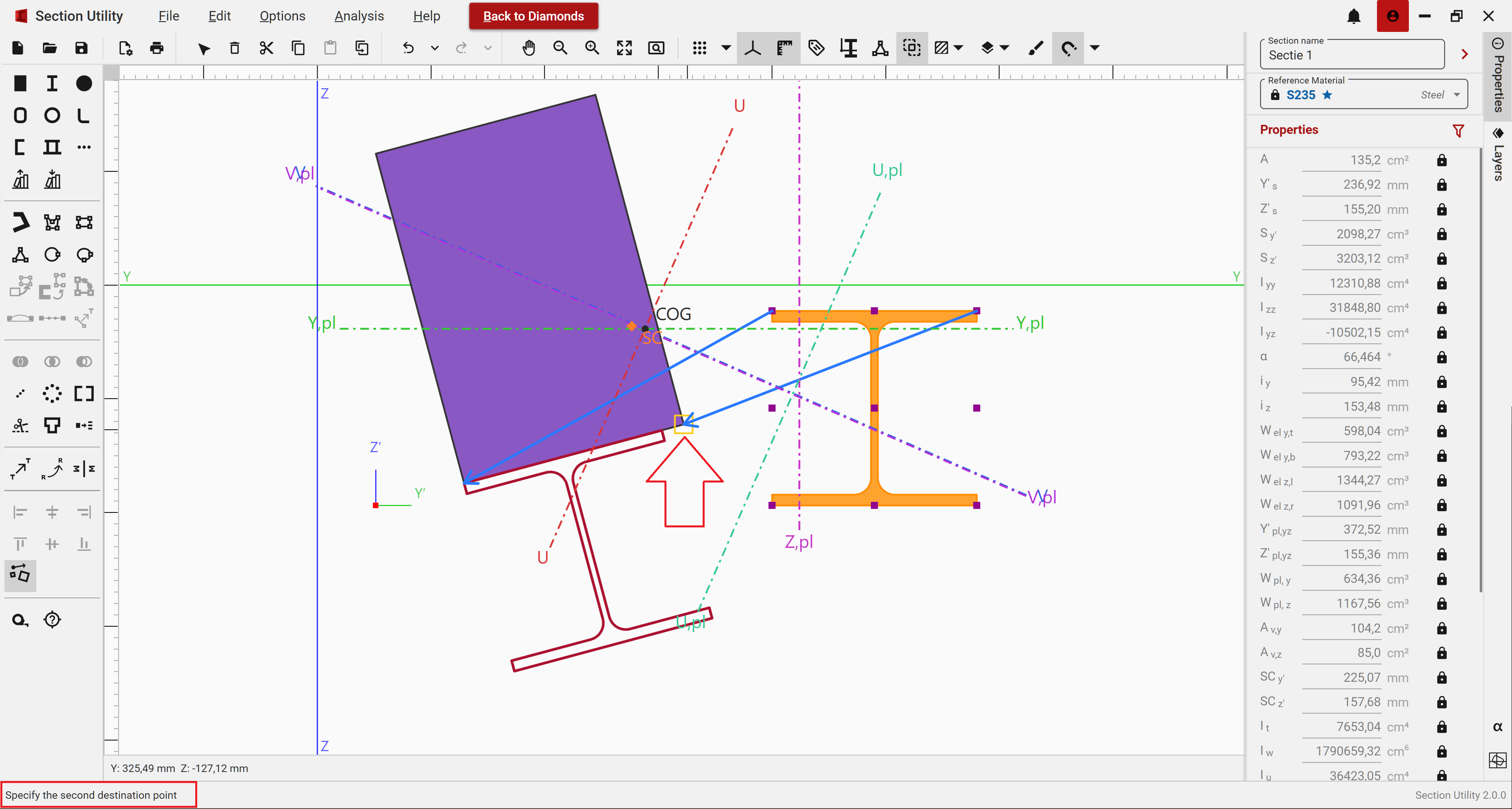
- Result:
- Select the H-section and click on the button
- Home
- /
- Docs
- /
- Private: Section Utility ...
- /
- Icon palette
- /
- Align