
New
Start a new project with  or press CTRL + N. If you had a project open, Section Utility will ask you what he should do with it: save it or discard all changes.
Open
Open an existing Section Utility file with  or press CTRL + O. This function is intended for projects made with Section Utility v2. To open projects made with Section Utility v1, use the import function.
Save and save as
Import legacy .SUT
Import from DXF/DWG
Export to DXF/ DWG
Page setup
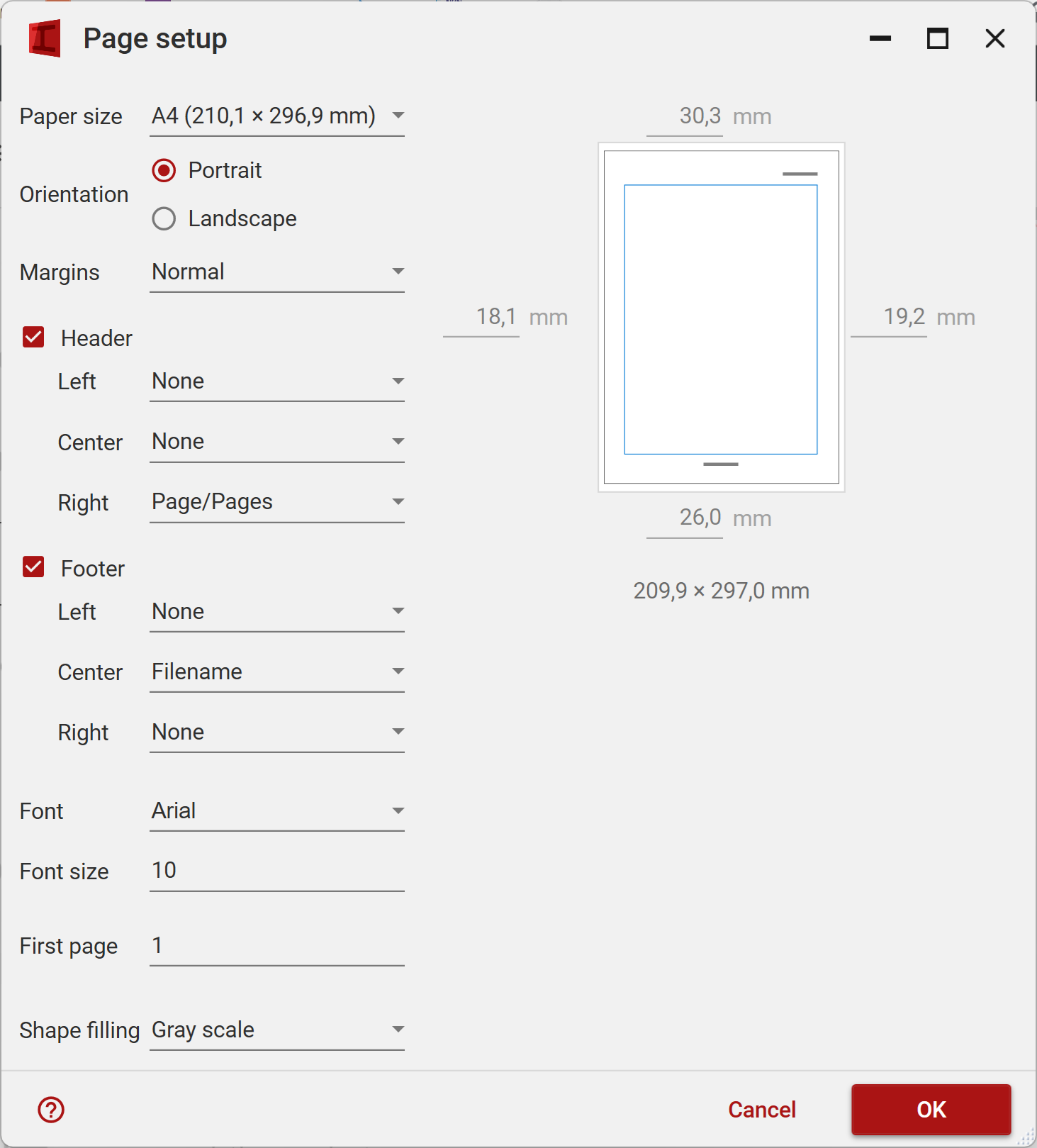
- Page size
Choose the page size. - Orientation
Choose between “Portrait” or “Landscape”. - Margins
Set the blank space within which printing will not occur. Choose between one of the standard options or define a custom margin. - Header & Footer
The header and footer texts are divided into 3 zones: left, central and right.
For each zone, a drop-down menu allows you to select:- none
- the date (a day of printing)
- the file name
- the page
- page/pages
- Font & Font size
Select the desired font from the drop-down menu.
Also define the size of the font for a normal text, a header, footer, and various titles. - First page
Define at which number the first page should start. - Shape filling
Choose how the shapes should be filled: none, greyscale or color.