
There are a few ways to select elements (points, lines, surfaces) with the same properties, but some methods have more possibilities than others.
- Using the menu Select
- Using Design types

- Using the right mouse button
This article focusses on the latter. The easiest way to explain this feature it with an example.
The selected support line in the model below has a spring constant of 300 000kN/m/m assigned to it.
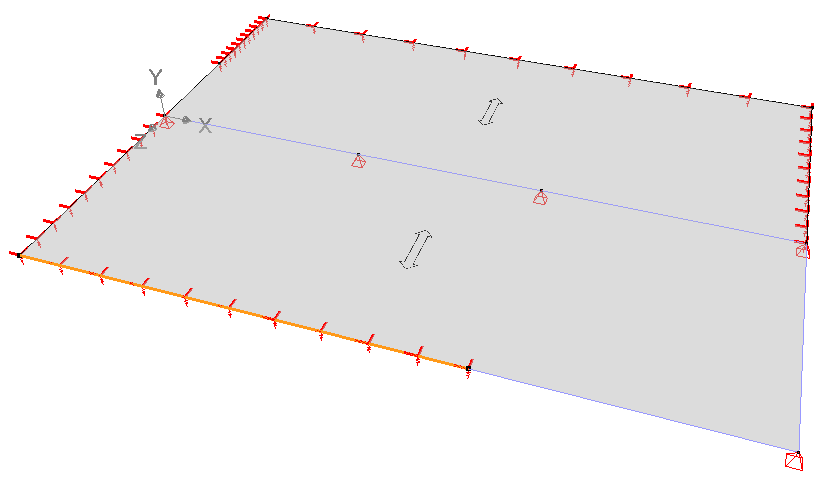
To select all support lines with the same support conditions, do the following:
- Select the source element of the property. In this case thus the relevant support line. But you can apply the same principle to points or surfaces as well.
- Click with the right mouse button in the drawing area. Go to the menu Select identical (Bar) and choose the desired property. In this case Support.
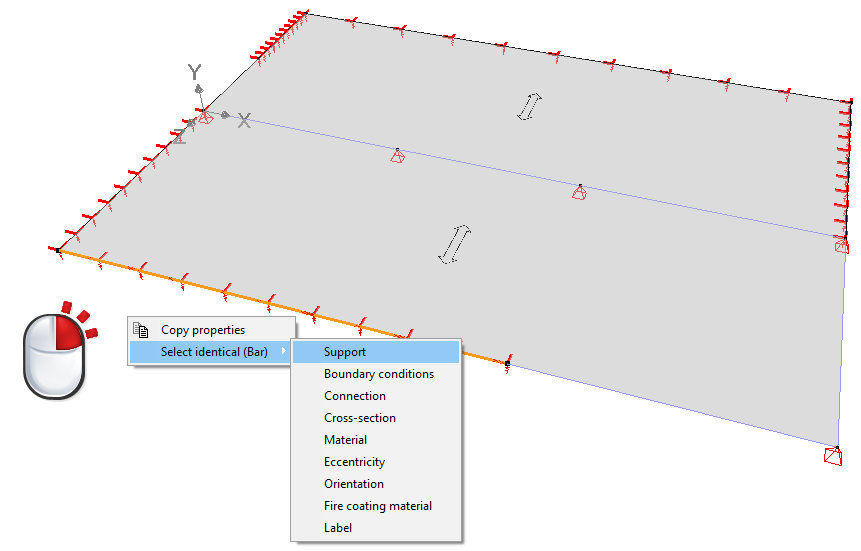
- Result: Diamonds will select all lines that have the same support condition as the source element.
 Notes:
- This feature is available in Diamonds 2022r01 (or newer).
- You can select based on the following properties
- For points: support, footing, label
- For bars: support, boundary conditions, connection, cross-section, material, eccentricity, orientation, fire coating material, label.
- For surfaces: support, boundary conditions, cross-section, material, label