
- Close all Diamonds/ PowerConnect/ BIM Expert projects.
- Open Task Manager (CTRL + ALT + DEL or right mouse click on the Windows bar).
- Go to the tab page « Details ».
Sort the list alphabetically by clicking on the column header « Name« .

- Find BuildSoft.Gateway.exe in the list. If you cannot find it, skip this step.
Select it and hit End Task.
BuildSoft.Gateway.exe will disappear from the list.

- Find BuildSoft.Gateway.Server.exe in the list. If you cannot find it, skip this step.
Select it and hit End Task.
BuildSoft.Gateway.Server.exe will disappear from the list.

- Find BuildSoftServer.exe in the list. If you cannot find it, skip this step.
Select it and hit End Task.
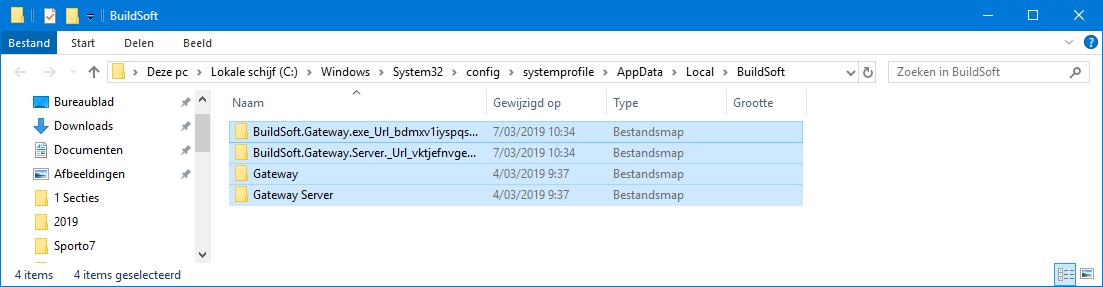
BuildSoftServer.exe will disappear from the list. - Open Windows Explorer. Go to the folder C:\Windows\System32\config\systemprofile\AppData\Local\BuildSoft
Select the entire content of the folder, and hit DEL.By deleting the content of this folder, you’re deleting user-defined materials/ cross-sections from the library. You’re setting the libraries back to factory settings.
If you used user-defined materials/ cross-sections for certain project, you’ll still be able to open/ use that project. The deletion only applies to what was stored in the library.
- Open Task Manager ( CTRL + ALT + DEL).
Go to the tab page Services.
Find the Gateway and Gateway Server in the list and hit « Start« .
If Gateway has « Stopped » as status again, try to start it again. It has the tendancy not to start from the first time.

- Both Gateway and Gateway Server should be started now.
Start Diamonds/ PowerConnect or BIM Expert.
- Sluit alle Diamonds/ PowerConnect/ BIM Expert projecten.
- Open het Taakbeheer (CTRL + ALT + DEL).
- Ga naar het tabblad « Details ».
Sorteer de lijst alfabetisch door op de kolomhoofding « Naam » te klikken.

- Zoek BuildSoft.Gateway.exe in de lijst. Als je hem niet kan vinden, sla deze stap dan over.
Selecteer hem en klik op « Taak beëindigen ».
BuildSoft.Gateway.exe zal uit de lijst verdwijnen.

- Zoek BuildSoft.Gateway.Server.exe in de lijst. Als je hem niet kan vinden, sla deze stap dan over.
Selecteer hem en klik op « Taak beëindigen ».
BuildSoft.Gateway.Server.exe zal uit de lijst verdwijnen. - Zoek BuildSoftserver.exe in de lijst. Als je hem niet kan vinden, sla deze stap dan over.
Selecteer hem en klik op Taak beëindigen.
BuildSoftserver.exe zal uit de lijst verdwijnen. - Open Windows Verkenner. Ga naar de map C:\Windows\System32\config\systemprofile\AppData\Local\BuildSoft
Selecteer de inhoud van die map en druk op DEL.Door de inhoud van deze map te verwijderen, verwijdert je door de user-defined materialen/ doorsneden uit de bibliotheek. Je zet de bibliotheken terug naar de fabrieksinstellingen.
Als je ooit user-defined materialen/doorsneden gebruikt hebt in een project, kan je dat project nog steeds openen/ gebruiken. De verwijdering heeft enkel betrekking op wat in de bibliotheek werd opgeslagen.

- Open het Taakbeheer ( CTRL + ALT + DEL ).
Ga naar het tabblad Services.
Zoek Gateway & Gateway Server in de lijst en klik op « Starten ».
Als Gateway terug als status « Gestopt » krijgt, dan start je hem nog eens. Hij heeft de neiging om niet van de eerste keer te willen starten.

- Zowel Gateway als Gateway Server moeten nu gestart zijn.
Start Diamonds / PowerConnect of BIM Expert.
- Fermer tous les projets de Diamonds/ PowerConnect/ BIM Expert
- Ouvrez le Gestionnaire des tâches ( CTRL + ALT + DEL ou cliquez avec le bouton droit de la souris sur la barre Windows).
- Allez vers l’onglet Détails.
Triez la liste par ordre alphabétique en cliquant sur l’en-tête de colonne « Nom ».

- Cherchez BuildSoft.Gateway.exe dans la liste. Si vous ne le trouvez pas, passez cette étape.
Sélectionnez-le et appuyez sur « Fin de tâche ».
BuildSoft.Gateway.exe disparaît de la liste.

- Cherchez BuildSoft.Gateway.Server.exe dans la liste. Si vous ne le trouvez pas, passez cette étape.
Sélectionnez-le et appuyez sur « Fin de tâche ».
BuildSoft.Gateway.Server.exe disparaît de la liste.

- Cherchez BuildSoftserver.exe dans la liste. Si vous ne le trouvez pas, passez cette étape.
Sélectionnez-le et appuyez sur « Fin de tâche ».
BuildSoftserver.exe disparaît de la liste. - Accédez au dossier C:\Windows\System32\config\systemprofile\AppData\Local\BuildSoft.
Sélectionnez le contenu du dossier et appuyez sur SUPPR.En supprimant le contenu de ce dossier, vous supprimez les matériaux/ sections définis par l’utilisateur de la bibliothèque. Vous rétablissez les paramètres par défaut des bibliothèques.
Si vous avez utilisé des matériaux/coupes transversales définis par l’utilisateur pour certains projets, vous pourrez toujours utiliser ces projets. Seuls les matériaux/coupes transversales définis par l’utilisateur et stockés dans la bibliothèque seront supprimés.
- Ouvrez le Gestionnaire de tâches ( CTRL + ALT + DEL).
Allez vers l’onglet « Services ».
Recherchez Gateway et Gateway Server et cliquez sur « Démarrer ».
Si Gateway affiche à nouveau le statut « Arrêté », essayez de le redémarrer. Il a tendance à ne pas démarrer du premier coup.

- Gateway et Gateway Server doivent être démarrés maintenant.
Démarrez Diamonds/PowerConnect ou BIM Expert.