
When installing Codemeter 9.10, you get the following error:
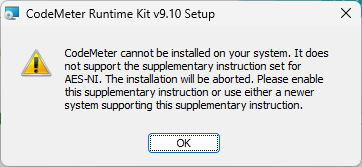
EN: Codemeter cannot be installed on your system. It does not support the supplimentary instruction set for AES-NI. The installation will be aborted. Please enable this supplementary instruction or use either a newer system supporting this supplementary instruction.
Cause
AES-NI (Advanced Encryption Standard New Instructions) is a set of instructions built into the CPU that speeds up AES encryption and decryption in hardware, making it much faster and more secure than doing it in software.
CodeMeter 9.x uses AES to protect license data, so it requires AES-NI and refuses to install without it. Almost every CPU since about 2010-2011 has it, but it can be switched off in the BIOS or be missing.
So let’s check if the feature is disabled:
- Download Coreinfo (= tool from Microsoft).
Remem - Unzip it.
Remember the folder were the file is in. - Press Windows Key, type
cmdand hit Enter.
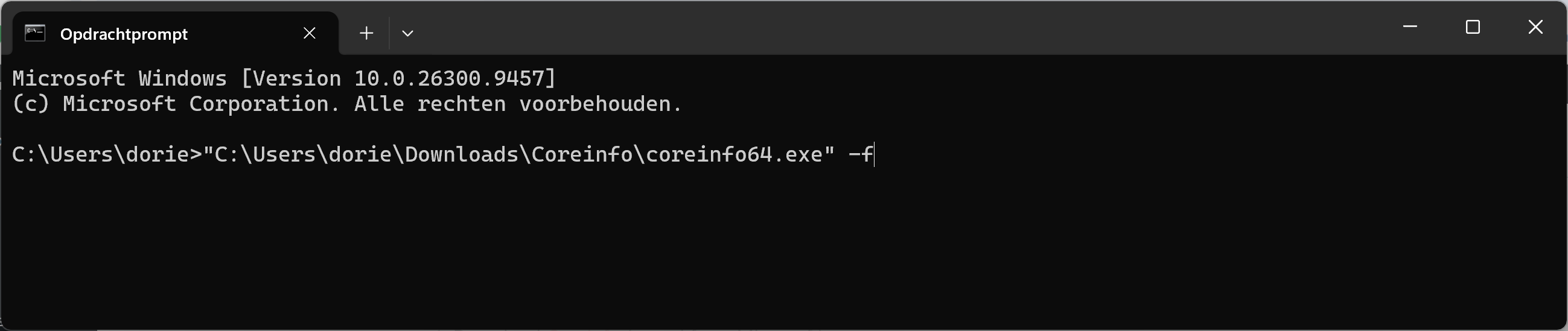
This opens the command prompt. - The command you’ll have to execute will look like this:
"C:\Users\dorie\Downloads\Coreinfo\coreinfo64.exe" -f
But you need to replaceC:\Users\dorie\Downloads\with whatever location you used for the download.
Paste the command and hit ENTER.
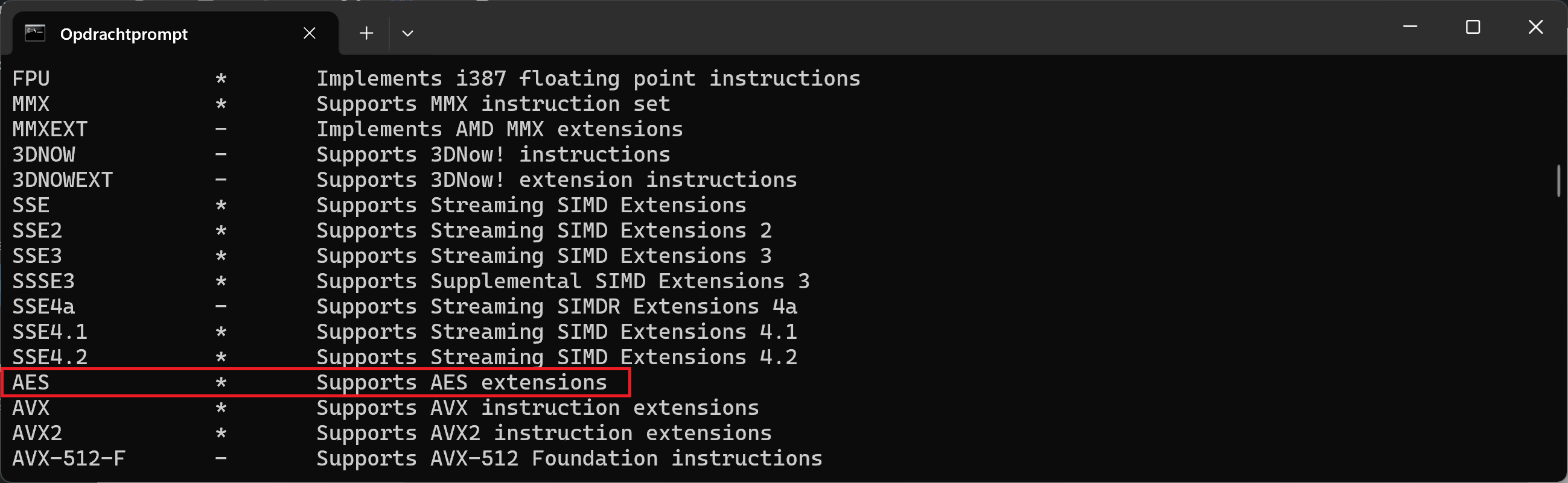
- Search the list for AES.
If a ( * ) is written behind it, AES-NI is enabled.
If a ( – ) is written behind it, AES-NI is disabled.
Solution in case of (-)
- Shut down your PC and boot into your BIOS/UEFI menu (usually by spamming F2, F12, or Del right as it turns on).
- Look for Advanced CPU Configuration, Security, or Processor Settings.
- Locate Intel AES-NI (or Intel AES). If it is set to Auto, explicitly change it to Enabled.
- Save and exit, then let Windows boot up.
Solution in case of (*)
1. Check for Antivirus/Security Interference
Some aggressive endpoint security tools or third-party antivirus software block applications from querying direct hardware instruction sets as a anti-exploit measure.
- If you are running third-party security software, temporarily disable its behavior monitoring or exploitation protection modules while running the CodeMeter installer.
- And possibly also while running Codemeter Control Center.
2. Clear Out Clashing System Environment Variables
CodeMeter relies on standard open-source cryptographic libraries (like OpenSSL) to evaluate AES capabilities. If you have other developer tools installed that set a global OPENSSL_ia32cap system variable, it can artificially turn off AES-NI detection for software trying to call it.
- Press the Windows Key and type
Environment Variables, then select Edit the system environment variables (NL: omgevingsvariabelen van het systeem bewerken). - Click Environment Variables at the bottom right.
- Check both the User variables and System variables sections for anything containing
OPENSSLoria32cap. - If found, back up the value, delete the variable, click OK, and restart your computer.
3. Delete prior corrupted 8.40 registry Keys
The 9.10 installer will check old Wibu-Systems registry strings to evaluate prior configurations. If version 8.40 crashed constantly, it likely left behind a dirty registry configuration state.
- Uninstall Codemeter.
- Press Windows Key + R, type
regedit, and hit Enter. - Navigate to:
HKEY_LOCAL_MACHINE\SOFTWARE\WIBU-SYSTEMS\CodeMeter. - Right-click the CodeMeter folder key and select Export (to save a backup just in case).
- After exporting, right-click and Delete the
CodeMeterregistry folder entirely. - Try executing the 9.10 installer again.