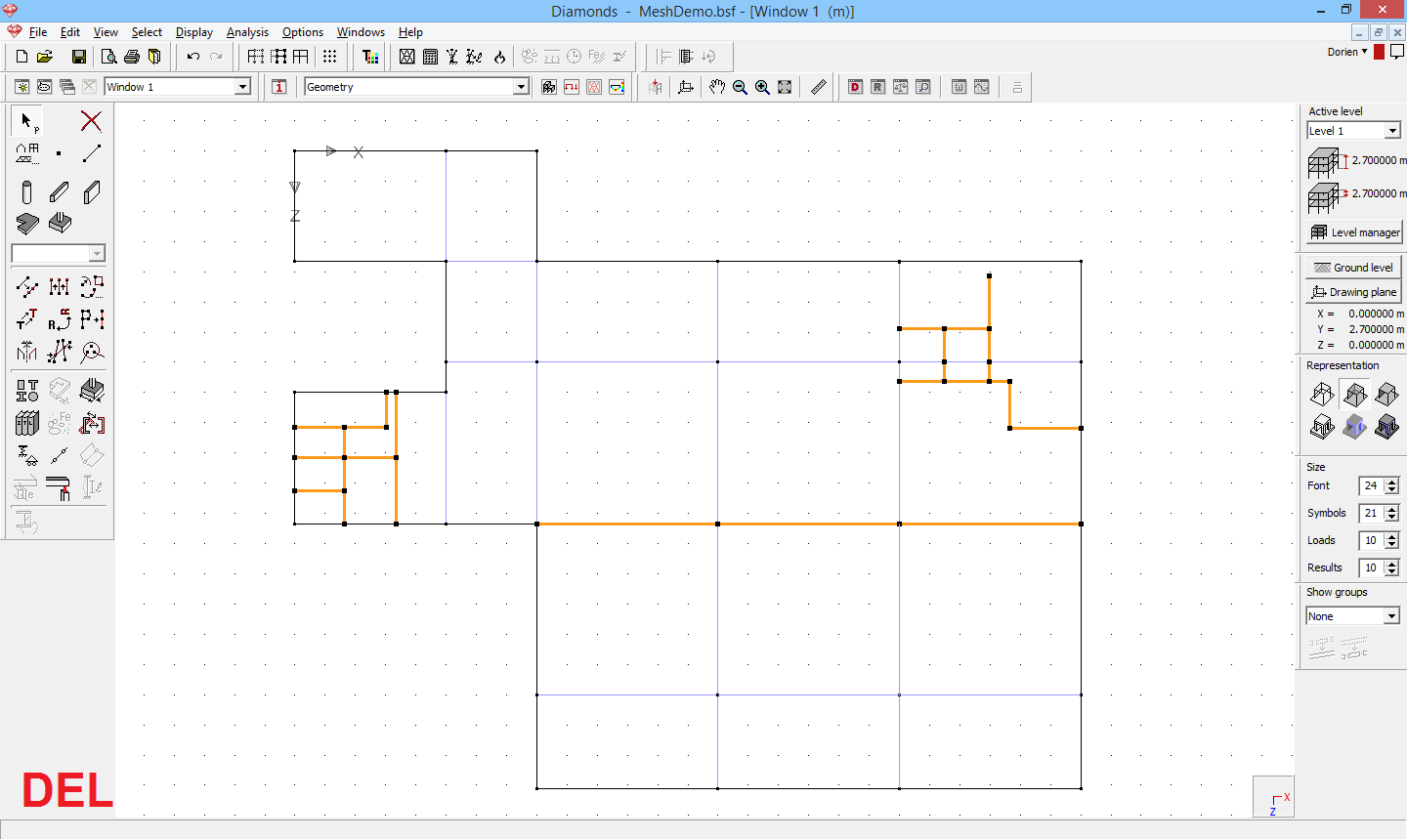
Solution 1
- Select the border(s) between the surfaces you want to merge.

- Click on
 or hit DEL.
- If the selected lines have a cross-section, the cross-section will be removed. Repeat step 2 again.
- If the selected lines didn’t have a cross-section assigned, you’ll see a dialog box. Choose ‘Merge’. Result:

Solution 2
- Double click a border of the unwanted plate and set the length to zero.
- Repeat until the plate is gone.
Solution 3
Assume you want to remove the selected line so the two plates are joint.
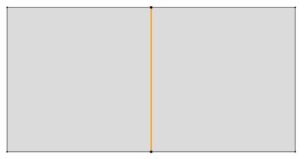
- Divide the line in 3 parts.

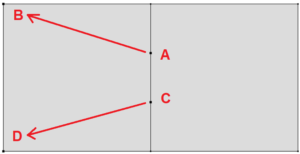
- Use the translate function
 to move point A to point B and point C to point D.
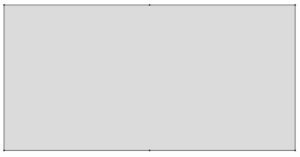
- Result:
Solution 4
Work level by level:
- Select all plates, but NOT their borders. You can use CTRL, SHIFT or the menu Select.
- Hit CTRL+SHIFT+DEL. This will delete the plates but not the borders.
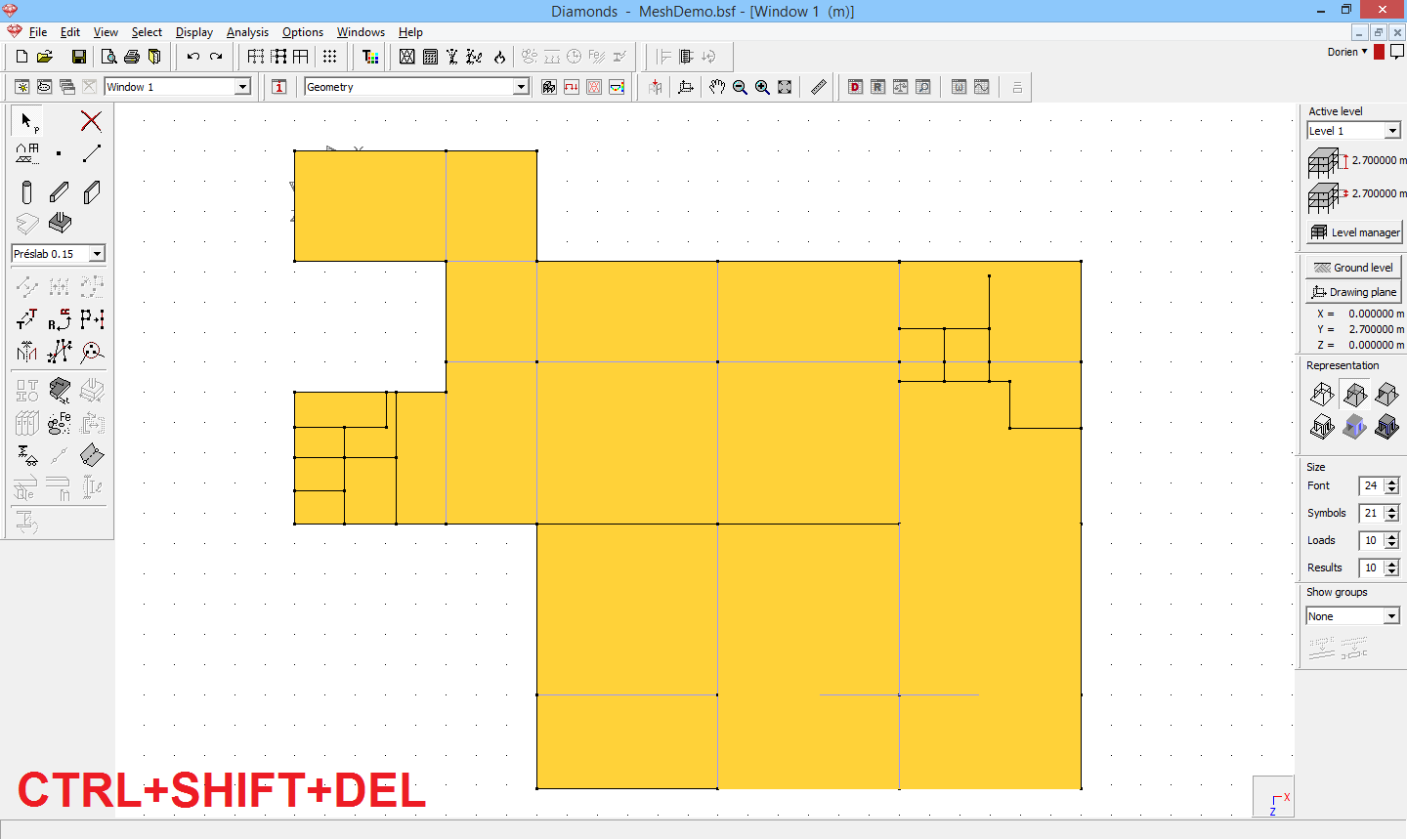
- Delete excess lines.
- Select all borders and generate a new plate.